
Submitting a Report
To report a bug or receive support, please contact a member of the Caido team by submitting a contact form or send us a message on Discord and be prepared to provide the following resources/information.
TIP
Your issue may already be known, resolved, or a feature request has been made! Search for it here:
Setup Information
We will typically need the following information for every case. Please provide us with your:
- Operating system.
- Version number/name.
- Caido client in use (CLI/desktop application/web application).
- The version of Caido in use.
- Both log files that include the issue.
EXAMPLE
I am using:
- OS: Mac OS
- OS Version: 12 (Monterey)
- Caido Client: Caido Desktop
- Caido Version: 0.33.0
Log Files
As Caido utilizes a client/server architecture, both frontend and backend logs are produced.
DANGER
As log files can contain sensitive information, only send them in private conversations with a verified member of the Caido team. If you are contacting us on Discord, we will open a private channel before asking for logs.
NOTE
Ensure to enable debug mode to assist with troubleshooting.
Backend Logs
To obtain the backend log files of your instance, navigate to the /logs subdirectory of the data storage directory. The default location of this directory is dependent on your operating system:
| OS | Location |
|---|---|
| Linux | ~/.local/share/caido |
| MacOS | ~/Library/Application\ Support/io.caido.Caido/ |
| Windows | %APPDATA%\caido\Caido\data |
Frontend Logs
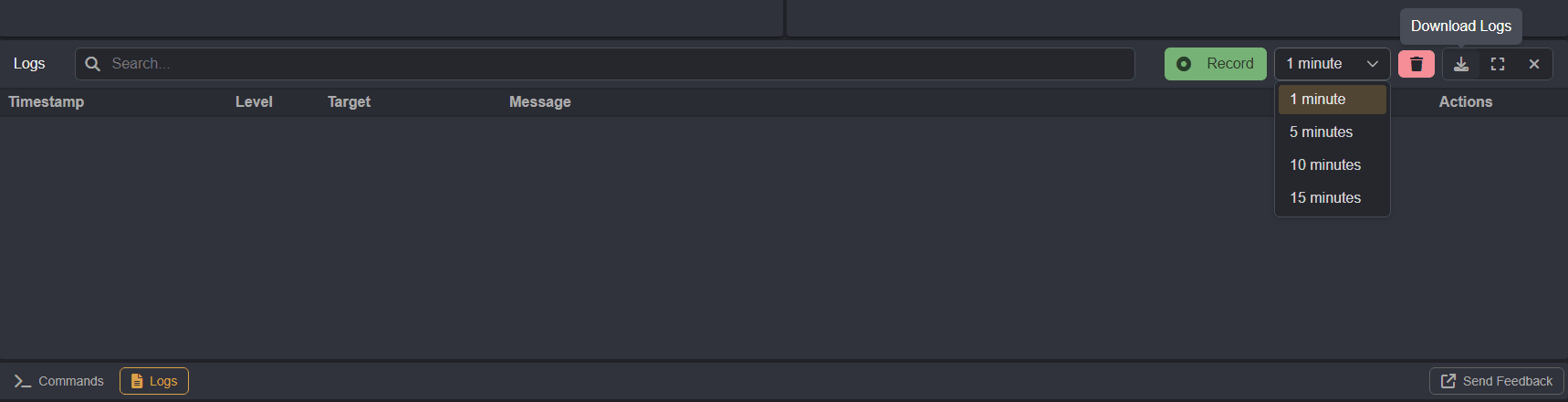
To obtain the frontend logs, either:
Access the DevTools interface by pressing the
F12key, using the keybindingCTRL+SHIFT+I, or selectingInspectfrom the right-click context menu. Within theConsoleright-click and selectSave as.../Save all Messages to File/etc. to export the messages as a.logfile.Click on the
Logsbutton at the bottom of the Caido user-interface, record your activity, and then click on thebutton to export the messages as a.logfile.Press the
ALTkey to open the menu bar, click onView, and selectToggle Developer Tools.
Steps to Reproduce
In order to assist you, it is critical that you provide a detailed timeline of the exact steps you took leading up to the bug. This ensures we are able to reproduce the issue in an accurate and timely manner.
EXAMPLE
To reproduce the bug, follow these steps:
- In the
Interceptinterface, click on theResponsebutton. - Begin intercepting responses, by clicking on the
Forwardingbutton to toggle it toQueuing. - In a terminal, execute
curl -x 127.0.0.1:8080 https://example.com. - Modify status code of the intercepted response.
- Click the
Forwardbutton. - Confirm in terminal that the response was not modified.
Submit a Github Issue
DANGER
Ensure to remove/redact any sensitive information in submissions.
Feel free to create a new issue on Github. For simplicity, a template is provided with sections to provide all the necessary information.