Customizing the User Interface
Caido offers a high-degree of customization, so you can adjust the user-interface to suit your preferences and needs.
Customize the Sidebar
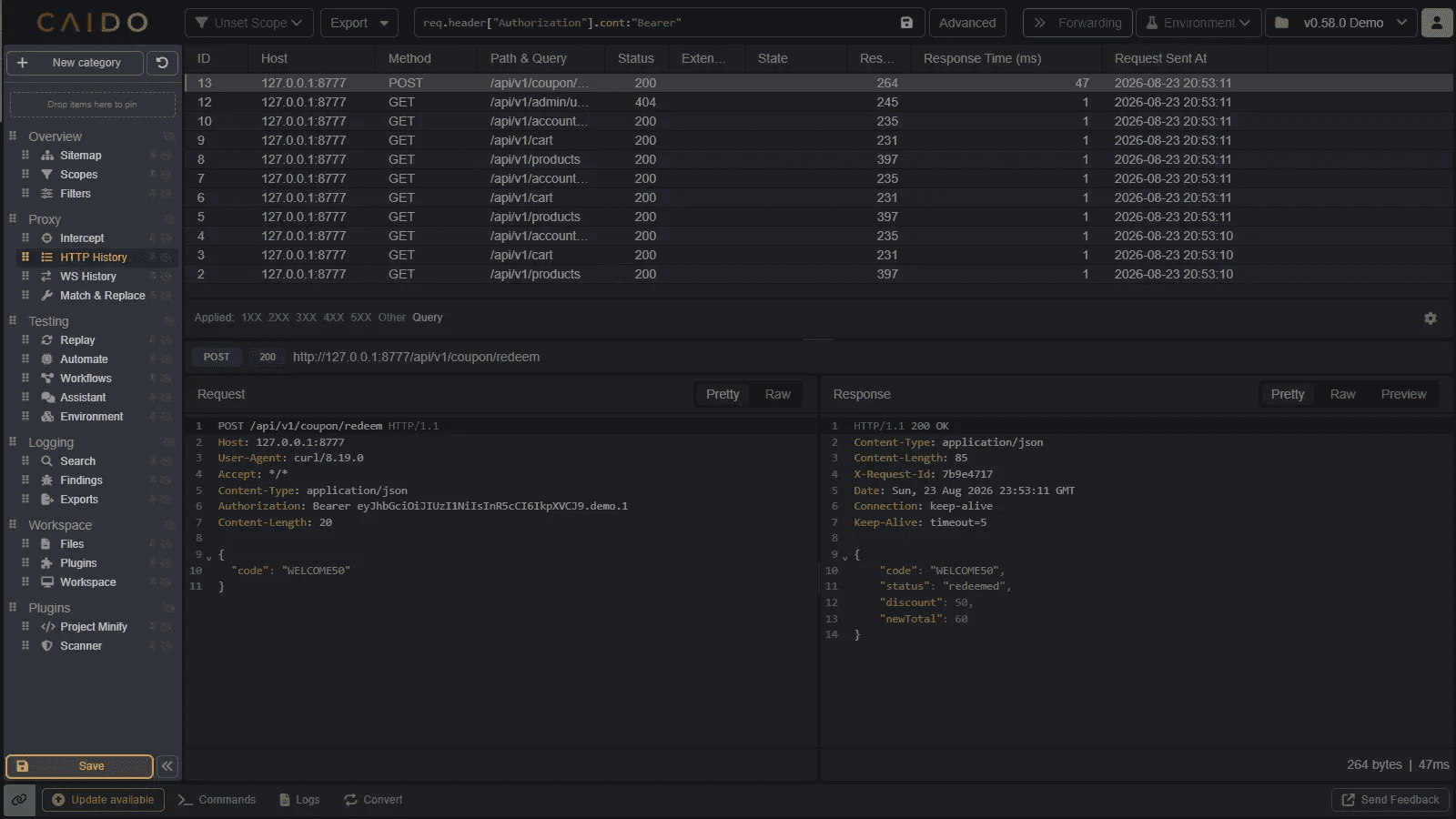
You can customize the Sidebar to organize pages and plugins according to your preferences by selecting Customize at the bottom.
The following options are available:
- Drag pages and plugins to reorder them
- Pin frequently used tools
- Hide items or entire categories
- Create categories with
New Category
Once you're satisfied with the layout, click Save to apply it.
To restore the default layout, click ↶.
Resizing Panes
To customize the layout of an interface, hover your mouse cursor between two panes until it is replaced with the grip icon or its vertical equivalent. Then, left-click, hold, and drag the gutter to resize a pane according to your preferences.

Adjusting the Font Size
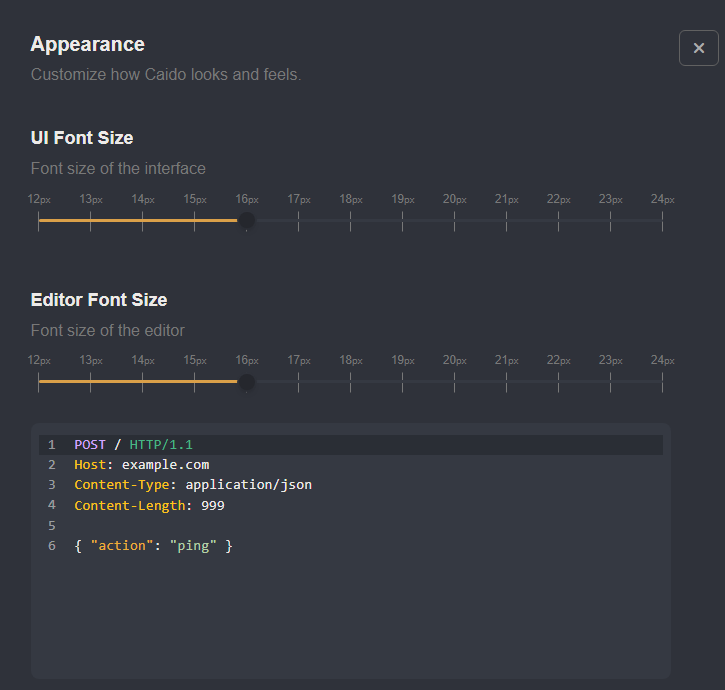
Caido allows you to adjust the font size of text within the user-interface and editors separately by providing two horizontal sliders. To access the font size settings, click on the account button in the top-right corner of the Caido user-interface, select Settings, and open the Appearance tab.
Custom JavaScript and CSS
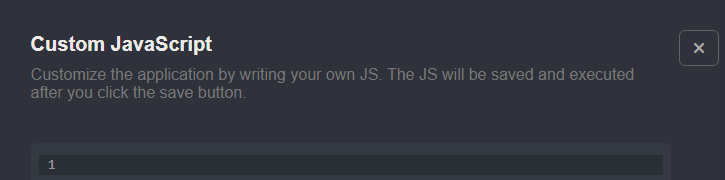
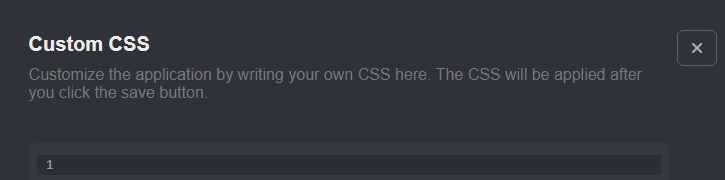
For advanced customization, Caido offers two coding environments in the Settings interface. To apply your own CSS rules to the user-interface, open the Custom CSS tab. To apply custom JavaScript to the user-interface, open the Custom JavaScript tab.